VSCode Setup
Installing and setting up Flux in VSCode
Please note
MCP support in VSCode is still in preview and we don't recommend using flux with VSCode till it's stable. You can check out more details about it here.
Please note
Local setup is more reliable right now and we recommend using it. Also, try reloading Cursor or refreshing the MCP server if you get any errors.
Local Setup
For users who want everything to be present locally, no remote servers involved
- Make sure you have latest stable version of NODE.js installed - Node.js download
- Open VSCode and create a settings.json file in the .vscode folder in your project directory's root like this -
settings.json
package.json
- Paste this code in the file and save it
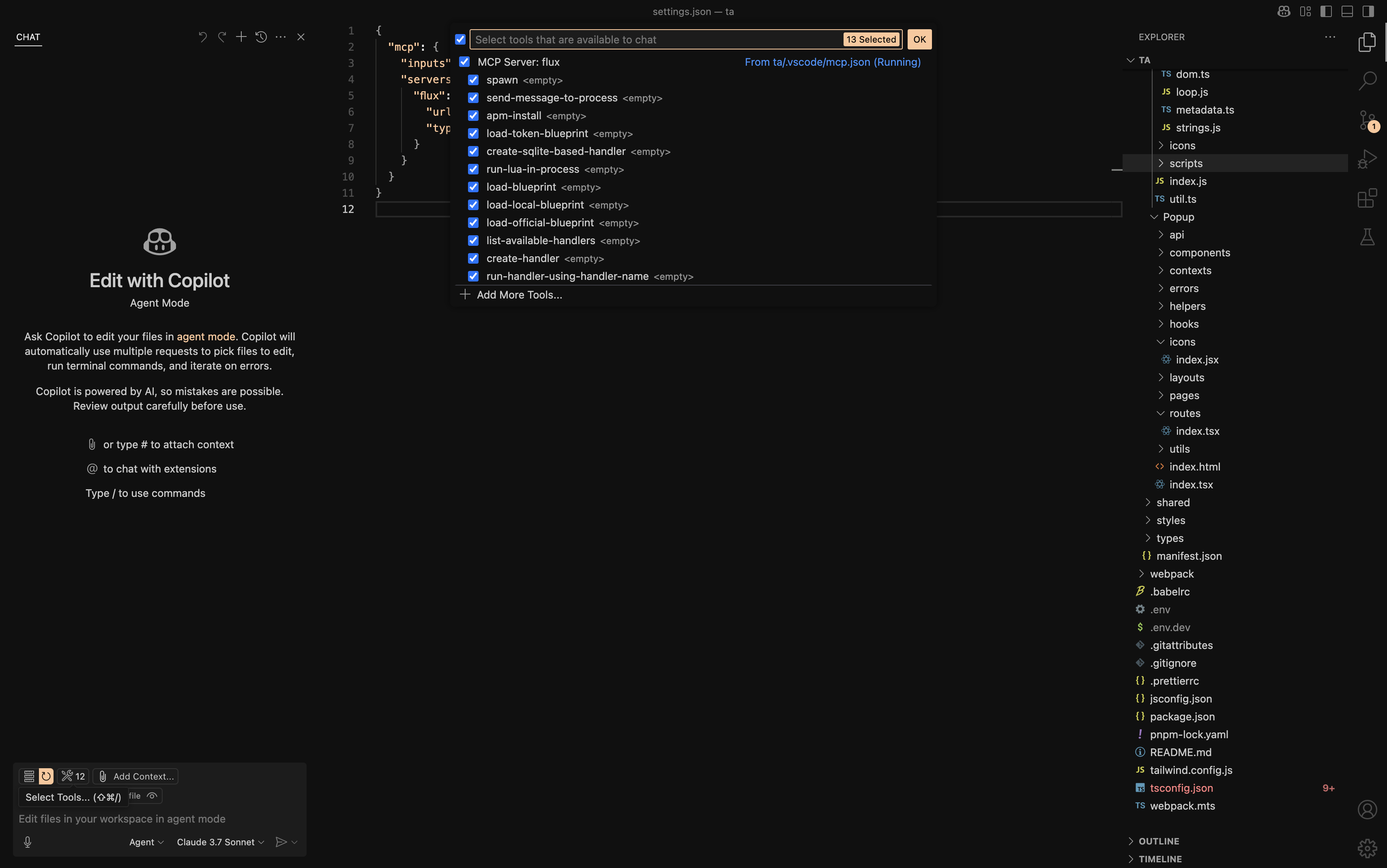
- If you did everything correctly you will be able to see the flux MCP loaded with all the tools, and its ready to be used in VSCode!
Remote Setup
For users who want to use Flux without installing anything locally
- Open VSCode and create a settings.json file in the .vscode folder in your project directory's root like this -
settings.json
package.json
- Paste this code in the file
- if you did everything correctly you will be able to see the flux MCP loaded with all the tools, and its ready to be used in VSCode!